
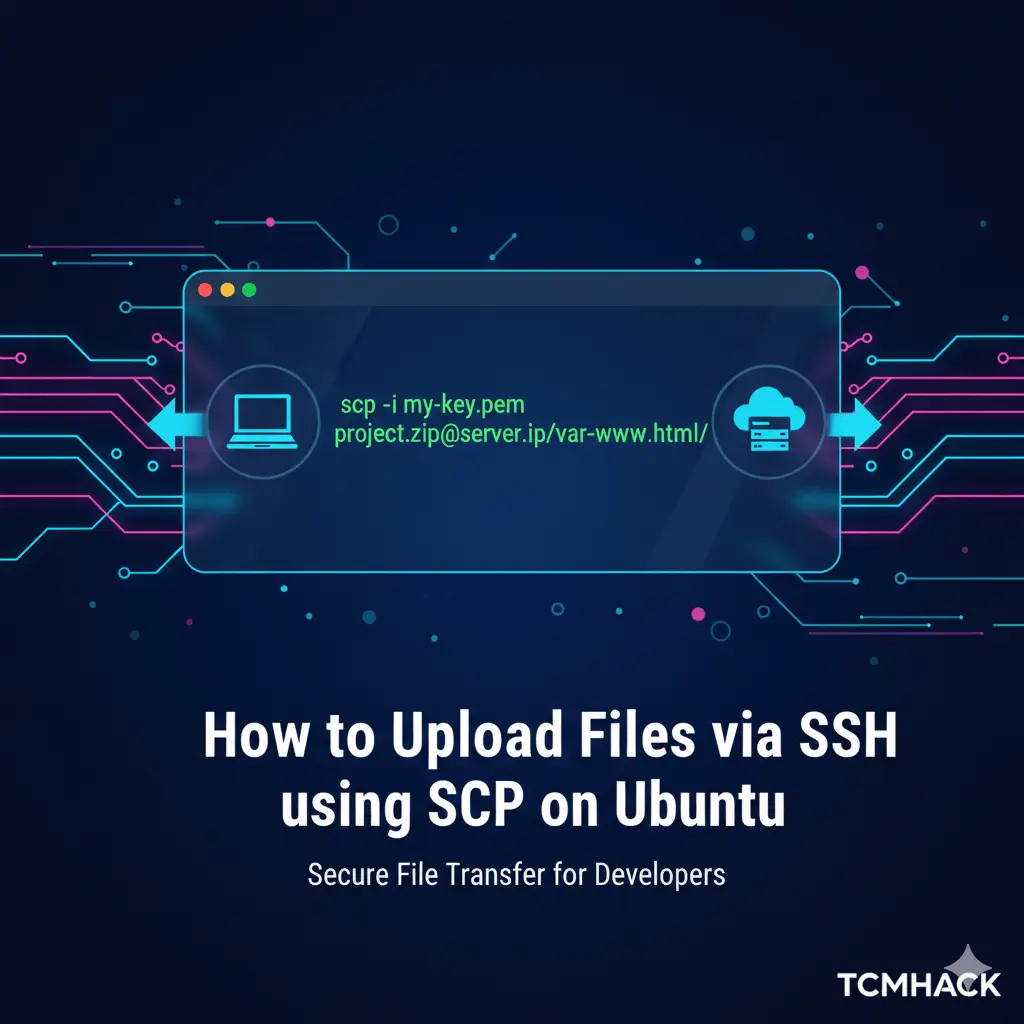
When you are working with cloud environments like AWS, DigitalOcean, or Google Cloud, you often find yourself without a graphical user interface or a traditional cPanel. In these scenarios, transferring files between your local machine and a remote server must be done through the command line.
The most common and secure way to do this is using SCP (Secure Copy Protocol). SCP is a command-line utility that allows you to securely copy files and directories between two locations using the SSH protocol.
In this guide, we’ll break down the syntax and provide practical examples for using SCP on Ubuntu.
What is SCP?
SCP stands for Secure Copy Protocol. It works over a standard SSH connection, meaning it provides the same level of security and encryption as SSH. While newer tools like rsync or sftp exist, SCP remains a favorite due to its simplicity and ubiquity.
The Basic Syntax
The syntax for SCP is very similar to the standard Linux cp (copy) command:
scp [OPTIONS] [SOURCE] [DESTINATION]1. Uploading a File to a Remote Server
To move a file from your local computer to a remote server:
scp /path/to/local/file.txt username@remote_host:/path/to/remote/directory/2. Downloading a File from a Remote Server
To pull a file from a remote server down to your current local directory:
scp username@remote_host:/path/to/remote/file.txt /path/to/local/directory/3. Uploading an Entire Directory
To upload a whole folder, you must use the -r (recursive) flag:
scp -r /path/to/local/folder username@remote_host:/path/to/remote/directory/Advanced Usage & Cloud Hosting (AWS)
Using a Custom Port
If your server uses a non-standard SSH port (something other than 22), use the -P flag:
scp -P 2222 local-file.txt username@remote_host:/remote/path/Authenticating with a PEM Key (AWS Example)
Cloud providers like AWS require an identity file (.pem key) for authentication. Use the -i flag to specify your key:
scp -i my-key.pem project.zip ubuntu@13.xxx.xxx.xxx:/var/www/html/Quick Tips for Success
- Permissions: Ensure the user you are logging in as has “Write” permissions on the destination folder.
- Paths: If you don’t specify an absolute path for the remote destination, SCP will default to the user’s home directory (
~/). - Overwrite: Be careful—SCP will overwrite files at the destination if they have the same name without asking for confirmation.
Feel like watching?
Share this:

Discover more from TCMHACK
Subscribe to get the latest posts sent to your email.


[…] Step 1: Move Your SSL Files to the Server […]